- drag and drop them
- select a bunch of files using a file picker using the button 'Add one or many photos'
- select all photos from a particular directory using the button 'Add Folder'.You can also choose to add recursively all photos contained in the subdirectories.
Getting started with Contenta Converter for Windows
Professional photo conversion and processing.
The software is a simple and powerful tool to convert your photos. It is simple to use because of its intuitive interface that gives you control over what you are doing. It is also powerful because you can configure important settings and automate common tasks.In two sentences, here is how the software works: First, tell which photos you will convert. Then tell how you want them converted. That's all there is to do!
Basic instructions
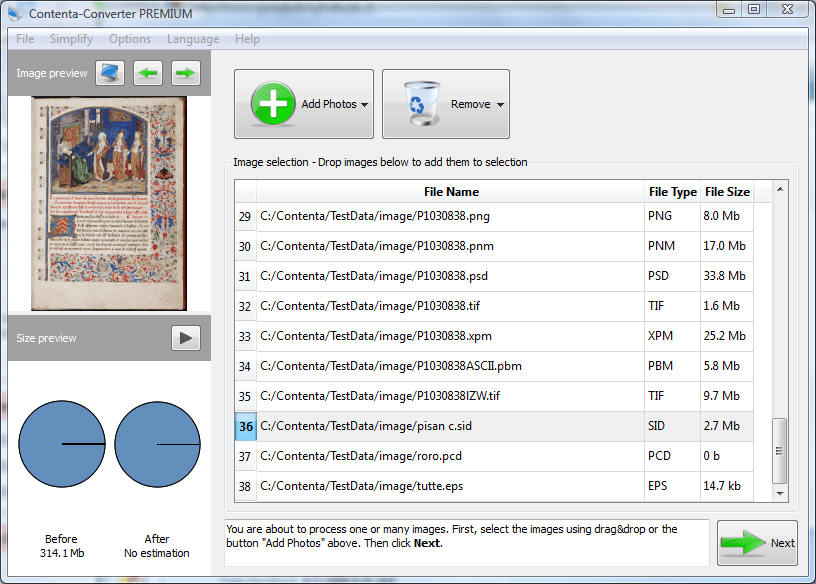 |
Photos selectionSelect your photos in 3 different ways: |
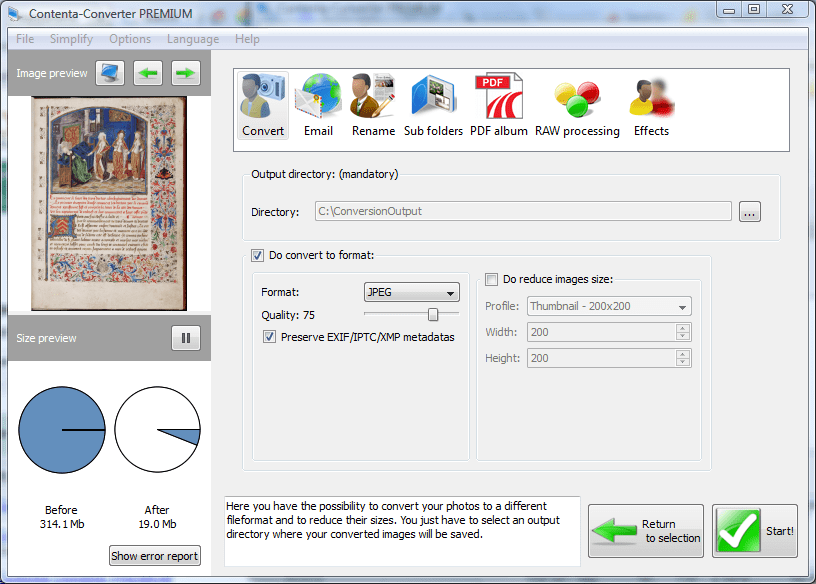
Conversion settingsThere is only one mandatory parameter to start converting: choosing the output directory where all your converted images will be saved. |
 |
All supported formatsThe full list of image formats that the software can read is: JPEG, JPEG 2000, PNG,TIFF, GIF, BMP, WBMP, TARGA, PPM, PGM, PBM, XPM, ICO, SVG, PS, EPS, PDF, PSD, CUT, G3, DDS, IFF, PCX, PCD, KOA, SGI, RAS, JNG, MNG, RAW, DNG, CRW, CR2, ORF, MRW, THM, NEF, PEF, SRF, SRW, ARW, 3FR, ERF,KDC, SR2, RAF, X3F, DCR, DRF, MEF, MOS, PTX. |
Supported RAW formatsYour camera may offer the option of saving Raw files. A raw file is a digital negative, it isn't processed in-camera and so is as accurate a recording of the scene as possible. The supported RAW formats are the following: RAW, DNG, CRW, CR2, ORF, MRW, THM, NEF, PEF, SRF, SRW, ARW, 3FR, ERF,KDC, SR2, RAF, X3F, DCR, DRF, MEF, MOS, PTX. |
Output formatsThen, you can choose to save the output in one of the following image formats: JPEG, JPEG 2000, PNG,TIFF, GIF, BMP, WBMP, TARGA, PPM, PGM, PBM, XPM, ICO, SVG, PS, EPS and PDF. |
Click 'Start!'. It is that simple to perform a conversion.
Download
CONTENTA CONVERTER Premium
Batch convert your photos
Quick and easy!

v7.00
The most intuitive software to transform your photos
Select photos |
Configure |
Convert |

Prepare for web, print, backup. Organize and rename. Apply effects, watermarks, metadata in batch.
Learn about more advanced options
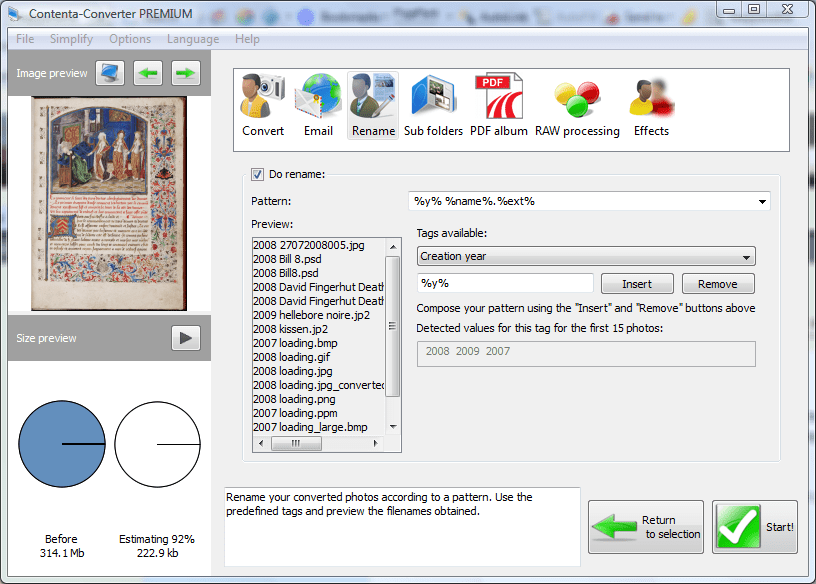 |
Rename automaticallyThis option makes it possible for you to rename all your photos to something better in no time.You can either select one predefined pattern or write one yourself. Everything that you write between the characters % will be interpreted as a tag value. Everything else will be reproduced as is. Examples: If you write '%name%.%ext%', the %name% tag will be replaced by the original filename. If you write 'holiday%counter%.%ext%', the filenames will look like 'holiday1.jpg', 'holiday2.jpg', ... There is a long list of possible tag to choose from that will take a value if the photo contains metadata about it. The possibilities are endless. |
Organize in sub-folders automaticallyThis option makes it possible for you to group your photos into relevant subfolders automatically. The pattern is defined in pretty much the same way as for renaming, but the character / will stand as a directory separator to introduce a new sub-folder.Examples: If you write %y%, the photos will be grouped in the subfolders '2008', '2007', ... If you write %y%%m%, the photos will be grouped in the subfolders '200810', '200709', ... There is a long list of possible tag to choose from that will take a value if the photo contains metadata about it. The possibilities are endless. |
 |
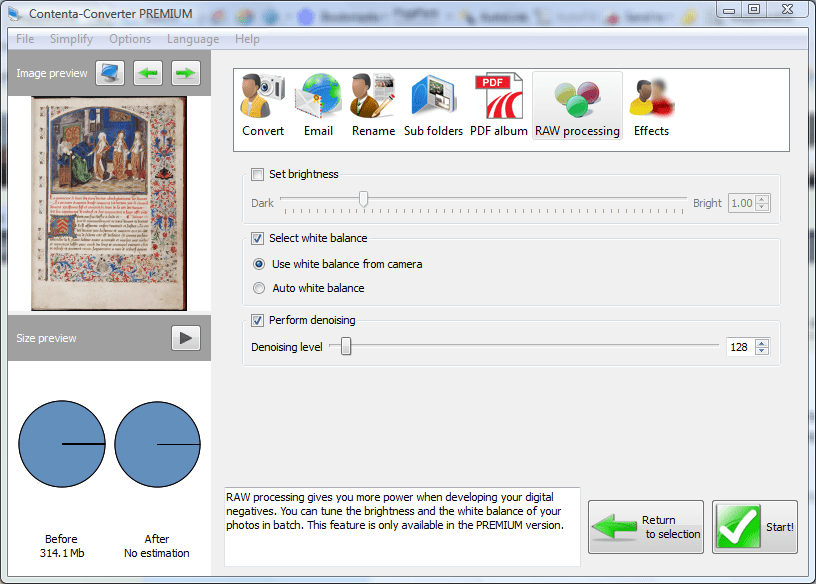 |
RAW processingThe RAW processing panel will let you develop your digital negatives in batch. You can choose a brightness level. If it is inferior to 1, your photos will be darker and if it is superior to 1 they will be brighter.The white balance gives a particular color temperature to your photos. It refers to the relative warmth or coolness of white light. You can choose to select the white balanced stored in your digital camera or let it be automatically optimized. You can choose to use denoising. A stronger denoising level will have stronger effect but might remove interesting details. For all these settings you can use the quality preview in order to check the result of your choice of parameters. |
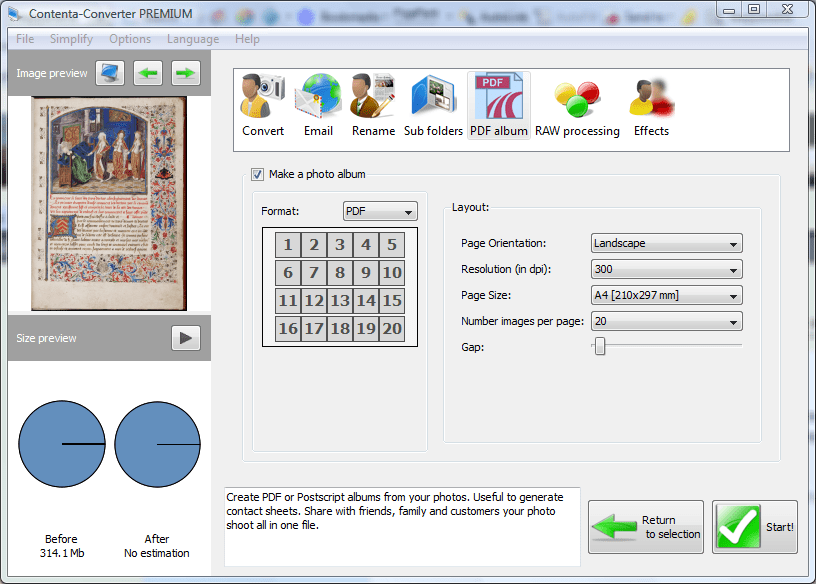
Create PDF photo albumsCreating a photo album in PDF is a very simple way to share your photos with your friends and family. The PDF format is ideal for internet and for printing.Configure page size and position/number of images per page and you will be delighted by the result. |
 |
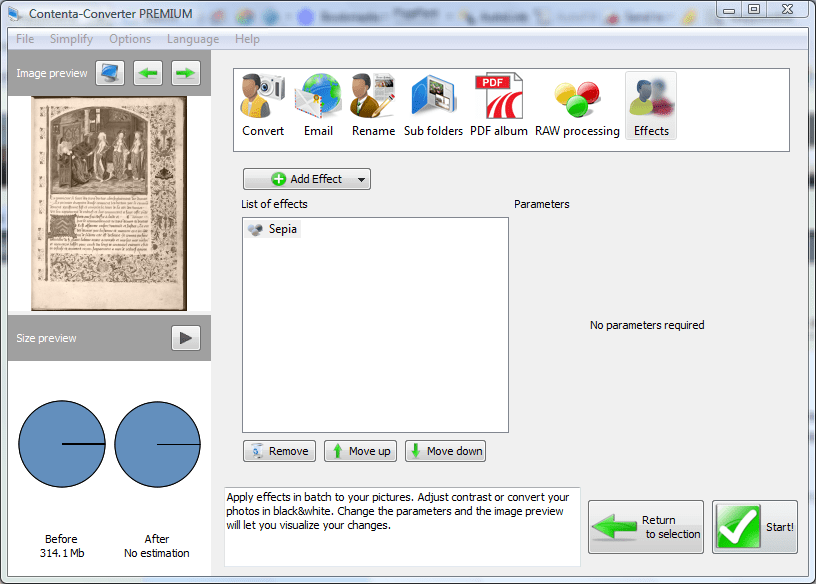 |
EffectsApply effects in batch to your images. Adjust contrast, brightness or convert your photos in black&white. You can place a visible watermark to protect your photos from theft or apply filters such as: blur, sharpen or median denoising. You change the parameters and the image preview will let you visualize your changes dynamically. |
Reduce images for all kind of screensYou may have hundreds of photos that you wants to resize so that can view them on TV, mobile phone, PSP, iPod or any other device.The problem is that your photos taken by your many megapixels camera are quite large and you need to reduce the size so that the pictures will fit the kind of screen you are interested in. With Contenta Converter, you can reduce to any size you want. If your photos are already smaller than what you specify, they will be left untouched. There are predefined sizes you can use for various desktop screens, DVD (PAL or NTSC), HDTV, iPod Video,Sony PSP, Thumbnail (200x200), Icon (32x32). |
 |
|
Optimize for the web and make thumbnailsIf you create web galleries, you have two problems to solve:1) create smaller photos optimized for the web and viewable in a browser. Images should be reduced to a small file size but still be beautiful and look high quality 2) create even smaller images which will be thumbnails so web visitors can overview quickly your gallery. Contenta Converter offer high quality JPEG compression as well as photo reduction capabilities so that you will be able to optimize large amount of images in one go. |
Preview final size on diskThe 'File size preview' is an automatically updated panel that will let you visualize how much space you save with a given conversion. Change the settings and the estimation will restart to let you know how much you will gain or lose with them. |
 |
Convert your PDF into an image seriesMulti-page PDF document conversion into a sequence of images is available if you install an optional software called ghostscript. A tool is included in the software to facilitate its installation. |
Load/Save your settings and combine all capabilitiesWhen you are satisfied with your settings, click 'Start!' to run your job. If you think you will need to perform this again in the future, do not forget to save your configuration. Later you will able to load it and skip all the configuration work and in one click on 'Start!' you will be able to do it all at once: convert, reduce, rename, group, process and PDF album! |
Download
CONTENTA CONVERTER Premium
Batch convert your photos
Quick and easy!
v7.00
The most intuitive software to transform your photos
Select photos |
Configure |
Convert |
Prepare for web, print, backup. Organize and rename. Apply effects, watermarks, metadata in batch.