.xcf
XCF Image Conversion: Batch Convert, Resize & Organize
Contenta Converter PREMIUM lets you open, convert, and batch process XCF files into modern formats like JPG, PNG, TIFF, PDF, and more.
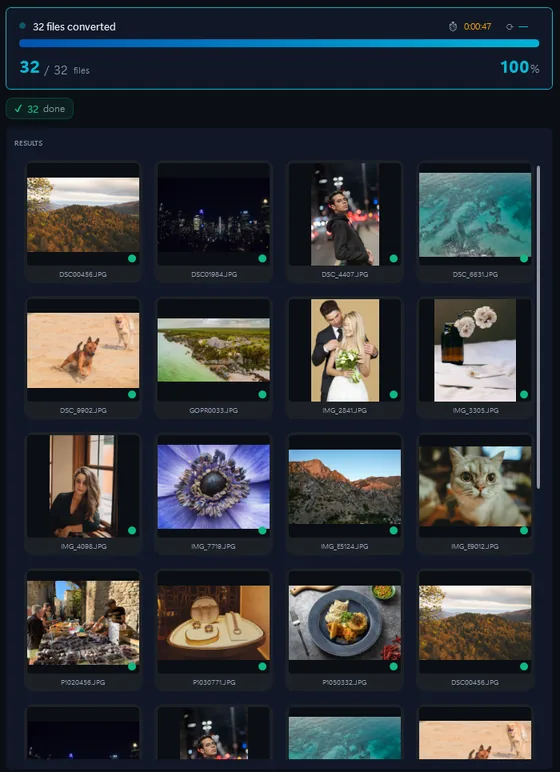
- Add your XCF filesDrop in single files or a whole folder.
- Pick output formatJPG, PNG, TIFF, PDF and more.
- Click ConvertEvery file converted in one pass.
The same photo, five outputs
 DSC_0001.NEF · 3900×2613
- PNG.png1.9 s16.1 MB
- AVIF.avif2.2 s2.02 MB
- JPG.jpg1.7 s1.69 MB
- WebP.webp1.7 s1.32 MB
- JPEG XL.jxl1.7 s1.12 MB
XCF (eXperimental Computing Facility) is the native image format of GIMP (GNU Image Manipulation Program). XCF files preserve all GIMP-specific data including layers, channels, paths, and other editing information. Contenta Converter PREMIUM can convert XCF files to JPG, PNG, TIFF, PDF, and other formats, flattening all layers into a single image.
Optimize file size, keep important metadata, and prepare images for web, print, or long-term archiving in just a few clicks.
How to convert XCF to JPG?
Answer
You can use our software Contenta Converter PREMIUM to convert thousands of XCF to JPG. Everything in one go and in just a few easy steps.Format |
XCF |
JPG |
Company |
GIMP |
Joint Photographic Experts Group |
| Description | XCF (eXperimental Computing Facility) is the native image format of GIMP (GNU Image Manipulation Program). XCF files preserve all GIMP-specific data including layers, channels, paths, and other editing information. Contenta Converter PREMIUM can convert XCF files to JPG, PNG, TIFF, PDF, and other formats, flattening all layers into a single image. | JPEG (Joint Photographic Experts Group, 1992) is the standard for compressed photographs. A .jpg file stores 8 bits per colour channel and discards the detail the eye is least likely to notice, which makes a 24-megapixel photo 5 to 10 MB instead of 70 MB uncompressed. Every camera, phone, browser and editor reads and writes it. |
| Benefits | Preserves all GIMP editing data including layers, channels, and paths. Lossless format with full editing flexibility. | Opens everywhere. Small files at good quality. Carries EXIF, IPTC and XMP metadata and ICC colour profiles. Rotation and cropping can be done without re-compressing, with the right tool. |
| Drawbacks | Only natively supported by GIMP. Very large file sizes. Not suitable for sharing or web use without conversion. | Lossy: quality drops a little with every re-save. No transparency, no layers, 8 bits per channel only. Visible blocking and halos at low quality settings or after many edits. |
Ready to convert your XCF files? Download the free trial.
Download the free trial: every file converts, keep 10 cleanUsers reviews:
|
"I have been using Contenta Converter for years and it has saved me countless hours of work. Highly recommended!"
James P., Professional Photographer |
|
"Simple, fast, and does exactly what it promises. The batch processing is incredibly efficient."
Maria S., Web Designer |
|
"Best image converter I have found. The RAW support and metadata handling are top-notch."
David L., Studio Owner |
Satisfaction Guaranteed:
 | Professional photo conversion and processing. |
|
| Trusted by photographers, designers, and businesses worldwide. |
|
| Totally risk free. After purchase, you have a 30-day money back guarantee. |
Frequently Asked Questions about XCF
What is a XCF image file?
A XCF file is a type of image format used in various tools and workflows. With Contenta Converter PREMIUM you can convert XCF files to more common formats like JPG, PNG, or PDF without losing control over quality.
How do I convert XCF images to JPG?
Install Contenta Converter PREMIUM, add your XCF files to the input list, choose JPG as the output format, and click Convert. The software will process all selected files in a single batch.
Can I batch-process many XCF images at once?
Yes. Contenta Converter PREMIUM is built for batch processing and can handle hundreds or thousands of XCF images in one operation, using all available CPU cores.
When should I convert XCF images to another format?
Convert XCF images when you need better compatibility with web browsers, design tools, or printing services. Exporting to formats like JPG, PNG, or TIFF from Contenta Converter PREMIUM makes sharing and archiving much easier.
Need more than XCF conversion? Browse supported cameras that produce XCF files below, or: