How to make a PDF photo album from your photos
Watch the short version
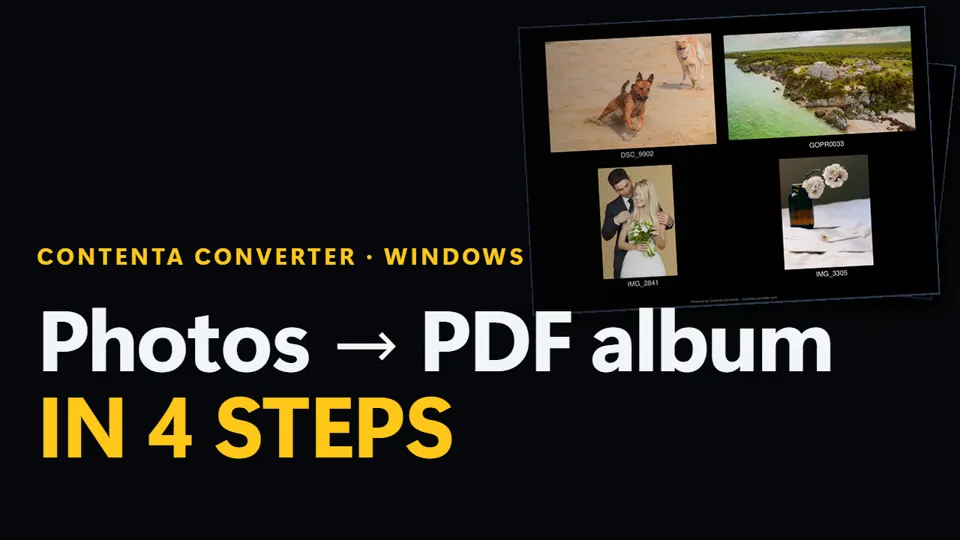
Windows · free trial · pay once, no subscription
Narrated in English, with subtitles · Short on time? Watch the one-minute version
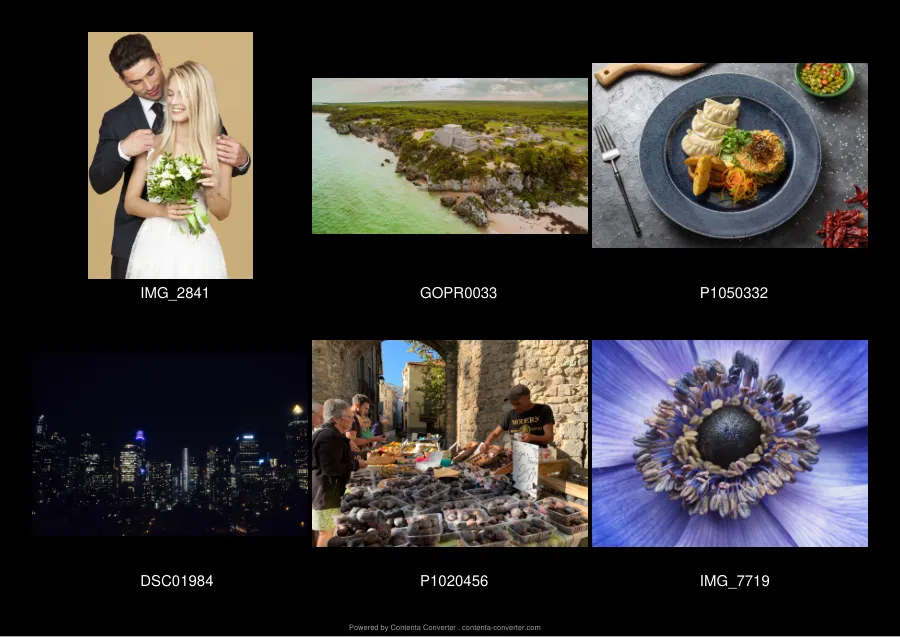
Short answer: in Contenta Converter, add your photos, click Create PDF Album on the Operations step, choose the page size and the number of photos per page, and click Start Converting. You get one file, album.pdf, with your photos laid out in a grid on A4, Letter or Legal pages, ready to email, print or keep. It runs on your Windows PC; your photos are not uploaded anywhere.
Make the album, step by step
- Add your photos. On the Files step, click Add Files or Add Folder, or drag the photos into the window. JPEG, PNG and camera RAW photos all work.
- Put them in order. The album follows the order of the file list. Tick a photo and move it with the up and down arrow buttons in the list toolbar, or with Ctrl+Up and Ctrl+Down.
- Choose the album. Click Next: Operations, then click the Create PDF Album card.
- Switch off Convert if you only want the PDF. The Convert card is on by default and would also save a converted copy of every photo. Click it once to turn it off.
- Set up the pages. Click Next: Configure. In the PDF Album section, choose the Page size, the Orientation and the number of Photos per page.
- Add the finishing touches, if you want them. Keep or clear Show filename under each photo, pick a background colour or image, and tick Add title page to open the album with a cover picture.
- Create the album. Choose the Output folder and click Start Converting. The album is saved there as
album.pdf. With no output folder set, it goes into the folder of the first photo.
The settings that matter
| Setting | Choices | Default | What it does |
|---|---|---|---|
| Page size | A4, Letter, Legal | A4 | Letter and Legal are the North American paper sizes; A4 is used almost everywhere else. |
| Orientation | Auto, Portrait, Landscape | Auto | Auto gives the whole album one orientation: landscape when most of your photos are landscape, portrait otherwise. |
| Photos per page | 1, 2, 4, 6, 8, 10, 12, 16, 24, 48 | 4 | Lays the photos out in an even grid. Each photo is scaled to fit its cell and never cropped. |
| Embedded image quality | 50 to 100% | 85% | Used for photos that are not JPEG yet, such as PNG and RAW: they are converted to JPEG at this quality. JPEG photos go into the PDF unchanged. |
| Show filename under each photo | On or off, text colour | On, white | Prints the file name without its extension under each photo, on up to two lines. Rename the files first if you want captions such as Beach day 2024. |
| Background | Colour, or an image (Tile, Stretch, Center) | Black | Fills every page behind the photos. |
| Title page | Add title page, with an image | Off | Adds a cover page that shows one image of your choice. It holds a picture, not typed text, so make your cover as an image first. |
How the photos are arranged
Columns × rows for each Photos per page choice. Every page keeps a 1 cm margin, and the same grid is used in portrait and in landscape.
How big the PDF gets
We made an album of 20 JPEG photos from a Nikon D800 (36 megapixels each, 302 MB together) with the default settings: 4 photos per page on A4. Contenta Converter wrote the 5-page PDF in 0.9 seconds, and the PDF is 302 MB, the same as the photos. That is on purpose: JPEG photos go into the PDF exactly as they are, with no second compression, so the album keeps every pixel for printing.
To email or share an album, make the photos smaller first. Run Contenta Converter once with Resize (we used 2,000 pixels on the long side, JPEG quality 85), then make the album from the resized copies. The same 20 photos came to 6.6 MB, and so did the album, made in 0.5 seconds. It takes two runs because the album is always built from the files in the list, not from the copies another operation writes in the same run.
Measured on September 25, 2026 with the command line of Contenta Converter 9.0.31 (contenta pdf-album, which uses the same album code as the app) on one PC: AMD Ryzen 9 3900X with 48 GB of RAM. Times are the median of 3 runs; sizes are as Windows shows them. Changing the embedded image quality did not change the size, because the photos were already JPEG.
The file is always called album.pdf
A new album replaces an older album.pdf in the same folder. Rename the first one, or choose another output folder, before you make the next.
Questions
Can I choose the order of the photos?
Yes. The pages follow the order of the file list on the Files step. Tick photos and move them up or down (Ctrl+Up, Ctrl+Down) before you click Start Converting.
Does the album lower the quality of my photos?
Not for JPEG photos: they go into the PDF byte for byte. PNG and camera RAW photos are converted to JPEG at the Embedded image quality you set, 85% by default. Photos are scaled to fit their place on the page and never cropped.
Can I make a PDF album with the free trial?
Yes. A trial album is made with a large grey Made by contenta-converter.com line across each page; keeping one album clean costs one of your 10 picks, and a license, $129 once with no subscription, removes the mark from every album. Trial or not, each page ends with a small Powered by Contenta Converter line.
Can I combine PDF files I already have?
Yes, with a different operation: Merge PDFs. It appends the PDF files in your list, in list order, into one merged.pdf, and the text stays selectable.
Make your first album
Download Contenta Converter and turn your own photos into a PDF album. Windows 10 and 11, 64-bit.
Download the free trial