Review photos before converting: keep the best, delete nothing
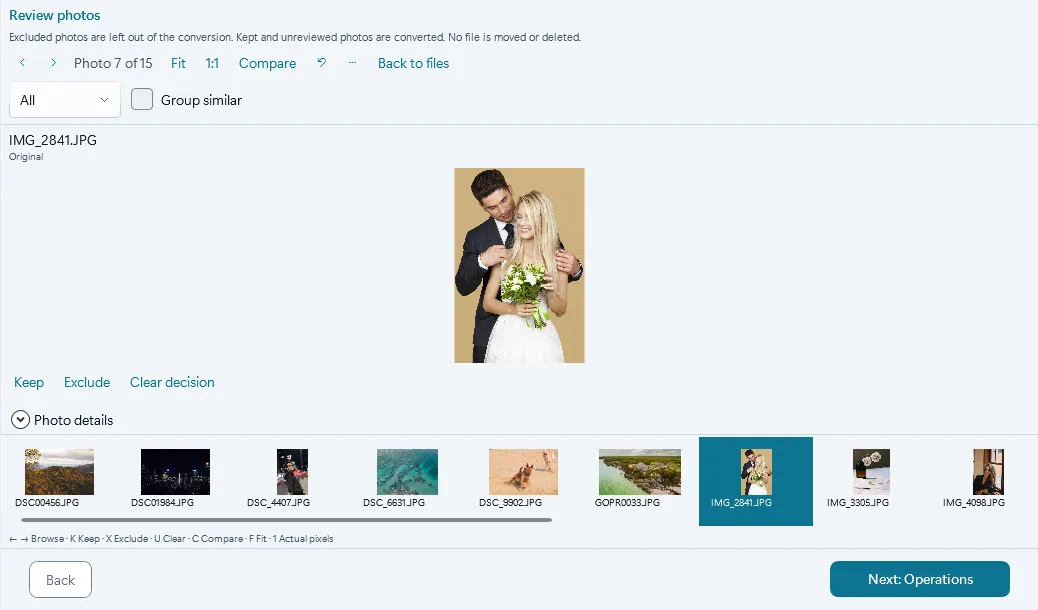
Short answer: in Contenta Converter 9.1, click Review on the Files step and go through your photos full size. Press X on the ones you do not want. Excluded photos are left out of the conversion; kept and unreviewed photos are converted. No file is moved or deleted.
Why review before you convert
A memory card from a wedding or a product shoot holds blurred frames, closed eyes and five near-identical shots of the same moment. Convert them all and you resize, watermark and export photos you will never use. Review leaves those out first, in the same app. You need no second viewer and no rejects folder.
Review a batch in five steps
- Add your photos on the Files step, then click Review in the status bar, or double-click a photo.
- Browse with the arrow keys. Press K to keep a photo, X to exclude it and U to clear the mark.
- Press 1 for actual pixels to check focus, and F to fit the photo to the window again.
- Use the filter (All, Included, Excluded, Unreviewed) to see what is left to decide.
- Click Next: Operations to carry on. Only the included photos are converted.
What Keep and Exclude do
Exclude leaves a photo out of this conversion. Keep marks a photo you like. Kept and unreviewed photos are both converted, so you only need to mark the ones you do not want.
The marks live in Contenta Converter, not in your files: nothing is moved, renamed or deleted on disk. The status bar counts included, excluded and total photos. After each change, Undo puts the previous mark back, and Reset review decisions clears them all.
Compare two shots side by side
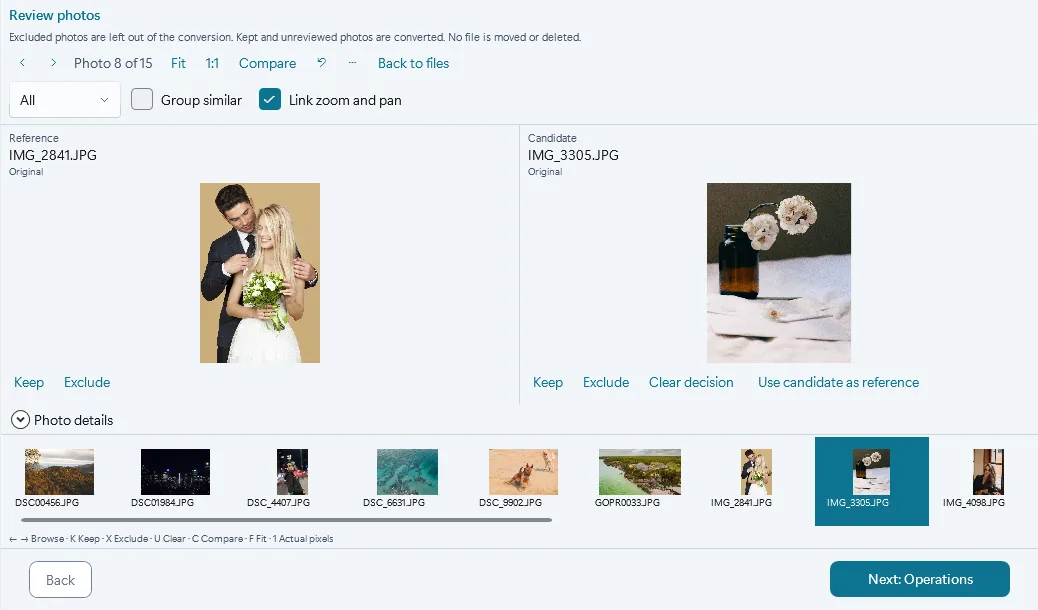
Press C to show the current photo next to the next one. The first one stays in place as the reference while you browse the others, so you can line up a whole burst against your favourite.
Link zoom and pan is on by default: zoom into an eye or a label on one side and the other side follows. When the candidate is better, click Use candidate as reference and carry on.
Group burst shots and keep the best one
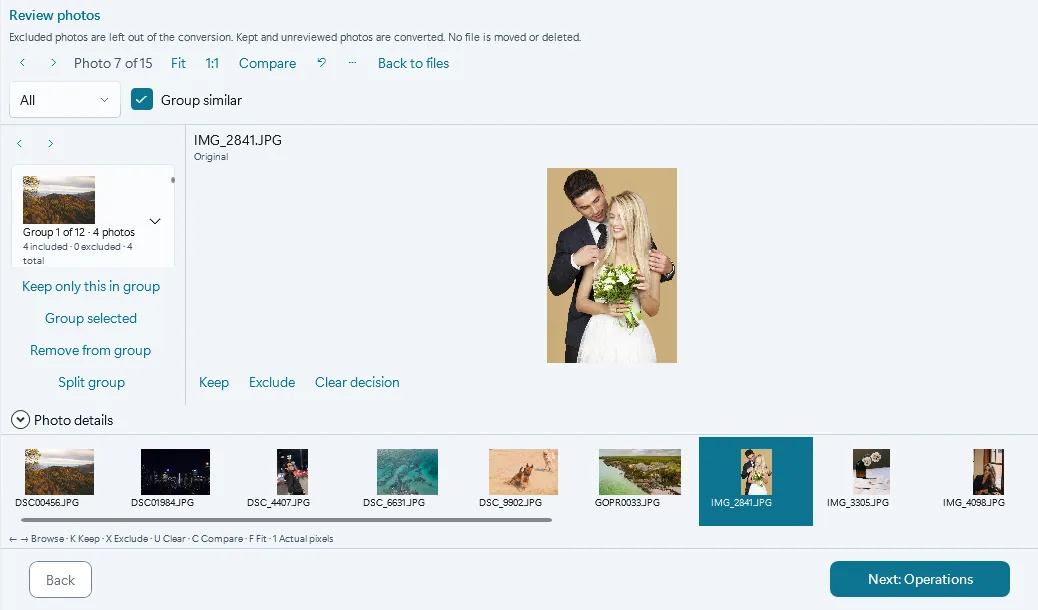
Tick Group similar and Contenta Converter puts burst shots together: photos from the same camera, taken within 2 seconds of each other and no more than 10 seconds from first to last, that look alike. A photo without a capture time stays on its own.
Pick the best shot of a group and click Keep only this in group: it is kept and the rest of the group is excluded in one step. If a group is wrong, Split group, Remove from group and Group selected fix it.
Stop now, finish later
Your marks are saved as you go. After a restart, click Resume review to get the photos and their marks back. A photo that was changed or deleted in the meantime is skipped, and the app tells you how many.
Questions
Does Exclude delete my photo?
No. It only leaves the photo out of the conversion. The file stays where it is, and you can clear the mark at any time.
Do I have to mark every photo?
No. Unreviewed photos are converted like kept ones. Mark only the photos you want to leave out.
Does Review show RAW files?
Yes. Under the file name, Review says whether you are looking at the camera preview or a rendered RAW.
Which version do I need?
Contenta Converter 9.1 or later, on Windows 10 or 11. The app offers the update itself, or you can download 9.1 from this site.
Related: make a PDF photo album from the photos you included
Review your next batch
Download Contenta Converter, add a folder of photos and click Review. The trial has no end date: results carry a small watermark until you pick up to 10 of them to keep clean. Windows 10 and 11, 64-bit.
Download the free trial